Colette
Agency owner
Runs a small creative or digital agency and needs an experienced design-and-build partner who can extend the team without adding another layer of management.
Lara Kroeker Interactive brings design direction and technical delivery together. These foundations explain why the work matters, what it aims to achieve, and how to make decisions that give clients clear, lasting results.
To build online experiences on foundations solid enough to outlast the platform they are built on, so clients get design leadership and technical execution from the same person instead of losing time and context between the two.
A practice where twenty years of watching platforms come and go plugs directly into whatever tool or AI workflow comes next, without the foundation ever needing to be rebuilt.
Closing the gap between strategy and execution on the design side, and between what AI can do and how organizations actually adopt it, one engagement at a time.
Direct, thoughtful and approachable. The voice reflects an experienced creative partner who explains things clearly, brings fresh ideas and makes complex work feel manageable. Lead with the useful point. Use plain language and concrete examples so people understand the work and why it matters. Show confidence through specific ideas, recommendations and results. Write in the first person, as a person speaking to another person. Let warmth and personality come through naturally. Keep the language grounded, avoid jargon and hype, and use humour when it fits.
LKI works with agency owners, organization leaders and entrepreneurs who need strategy, design and development to work together. These three profiles help shape the brand’s language, examples and priorities around what each audience needs.
Runs a small creative or digital agency and needs an experienced design-and-build partner who can extend the team without adding another layer of management.
Leads a member-based, cultural, or non-profit organization and owns the website alongside everything else. Needs clarity, momentum, and a system the team can maintain.
Has an established offer and a growing expert-led business. Needs the brand and website to catch up, with strategy and execution handled as one connected engagement.
Use the supplied logo files so the brand looks consistent wherever it appears. Keep the original proportions, give the logo room, and choose a version that is easy to see against the background.
Use the supplied logo files and keep their colours, proportions and orientation intact. Choose a background with enough contrast for the logo to stand out clearly. Leave clear space on all sides, equal to the height of “lara” in the wordmark or the blue pencil stem in the icon.
Wide-format use
Use the horizontal logo in website headers, footers and documents where there is enough width to keep it clear and legible.
Small-scale use
Use the icon for profile images, favicons and app tiles, or in small spaces where the full logo would be difficult to read.
Choose images that help people connect with the subject, whether that is a person, a place or an idea. Photography and graphics should support the message and make information easier to understand. Use the groups below to find the right starting point.
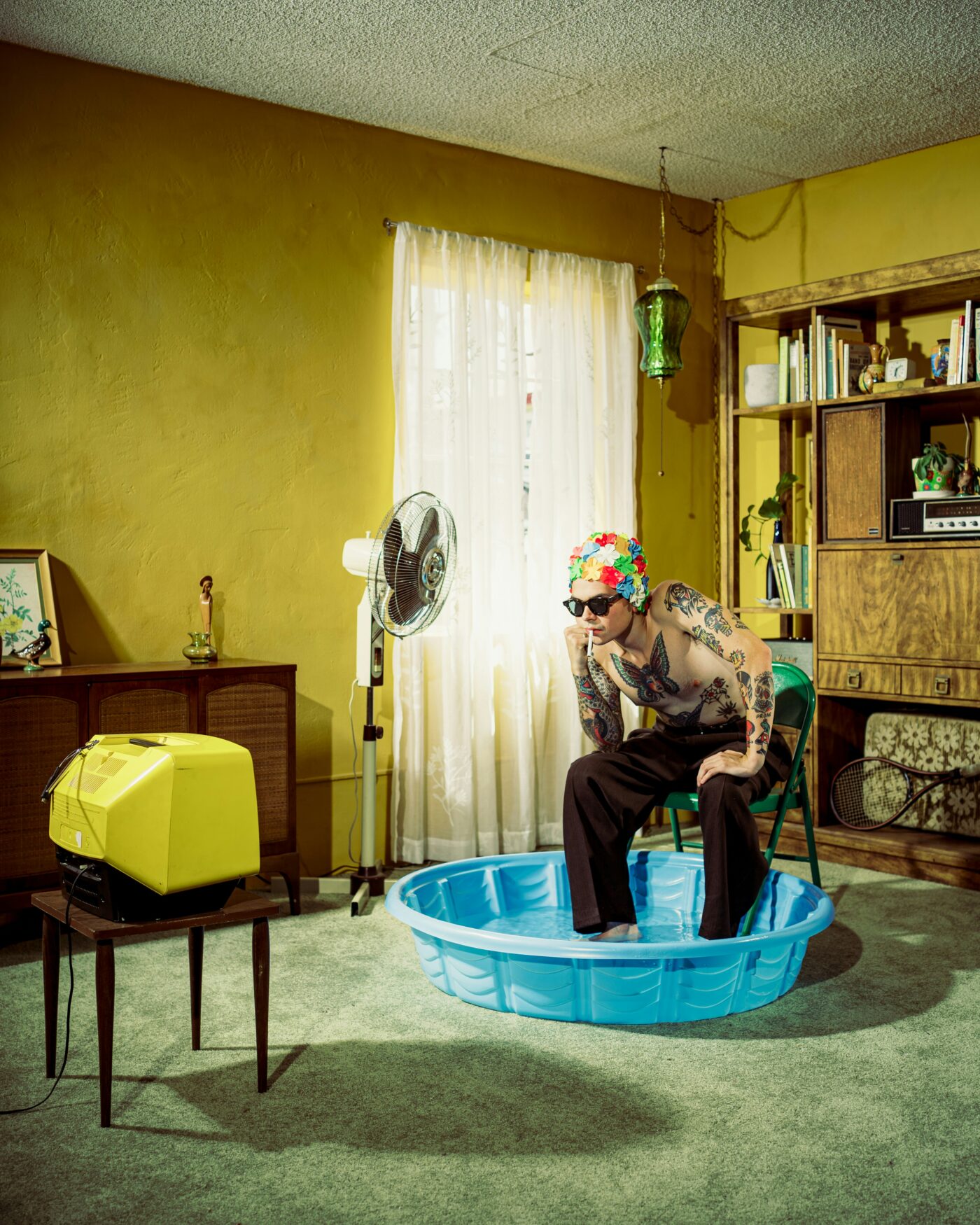
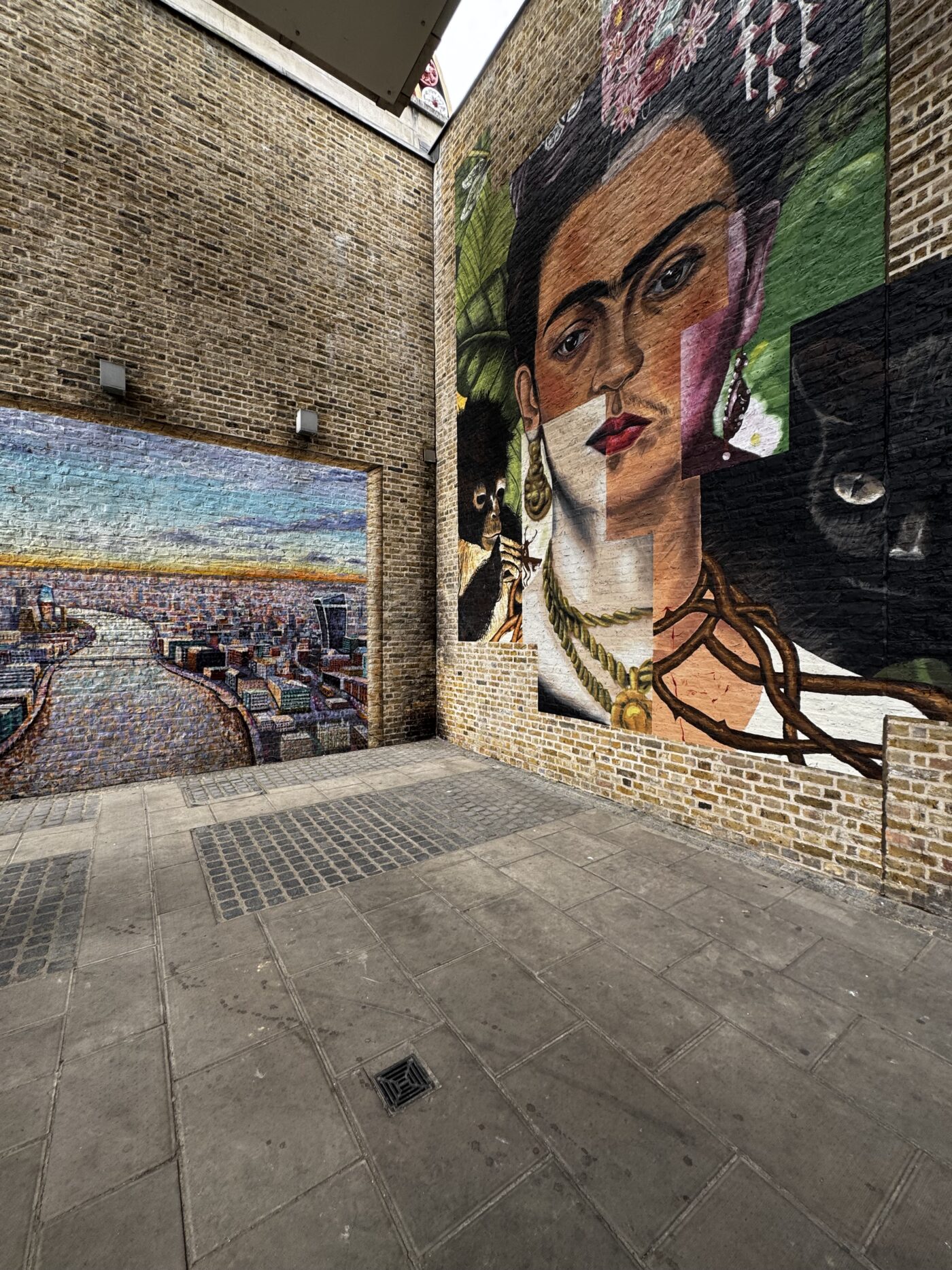
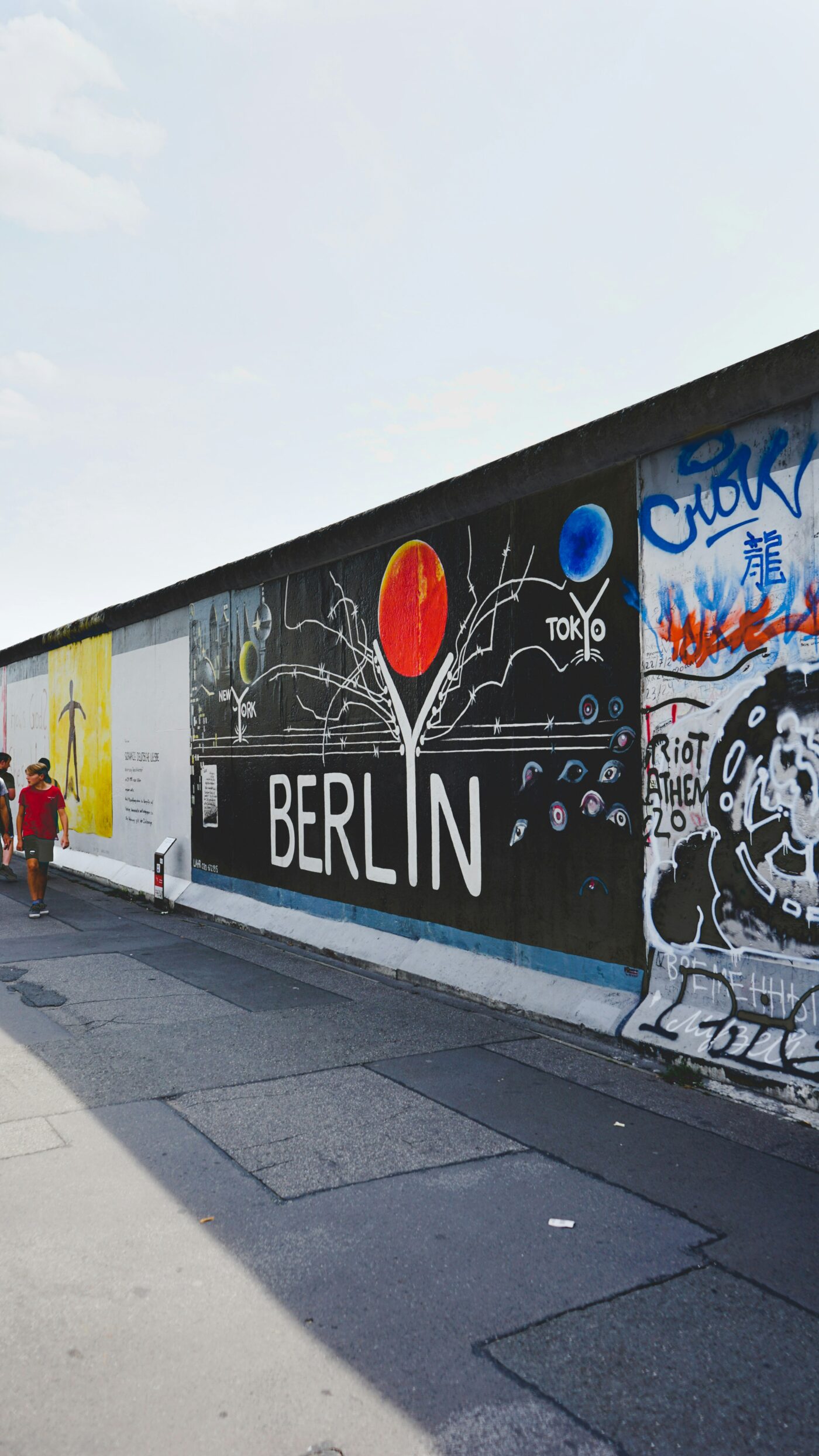
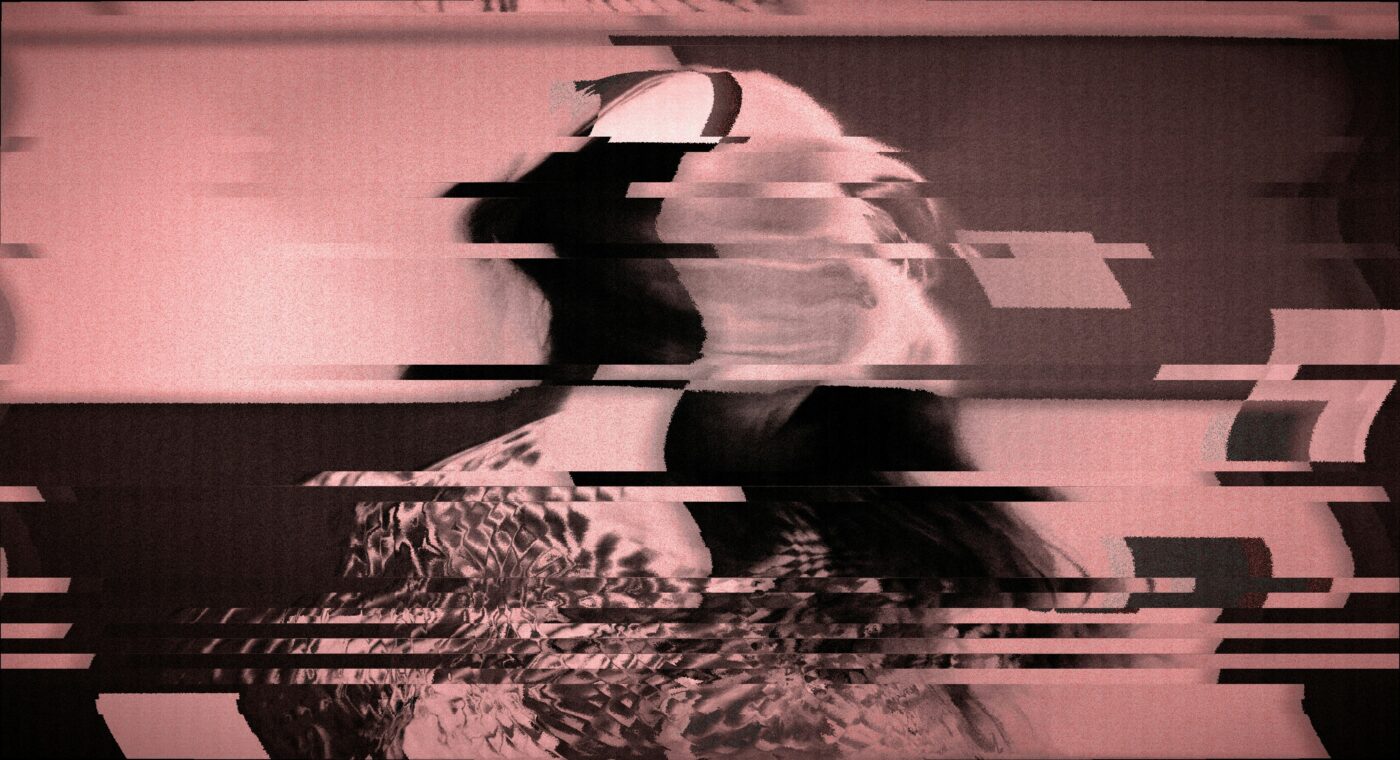
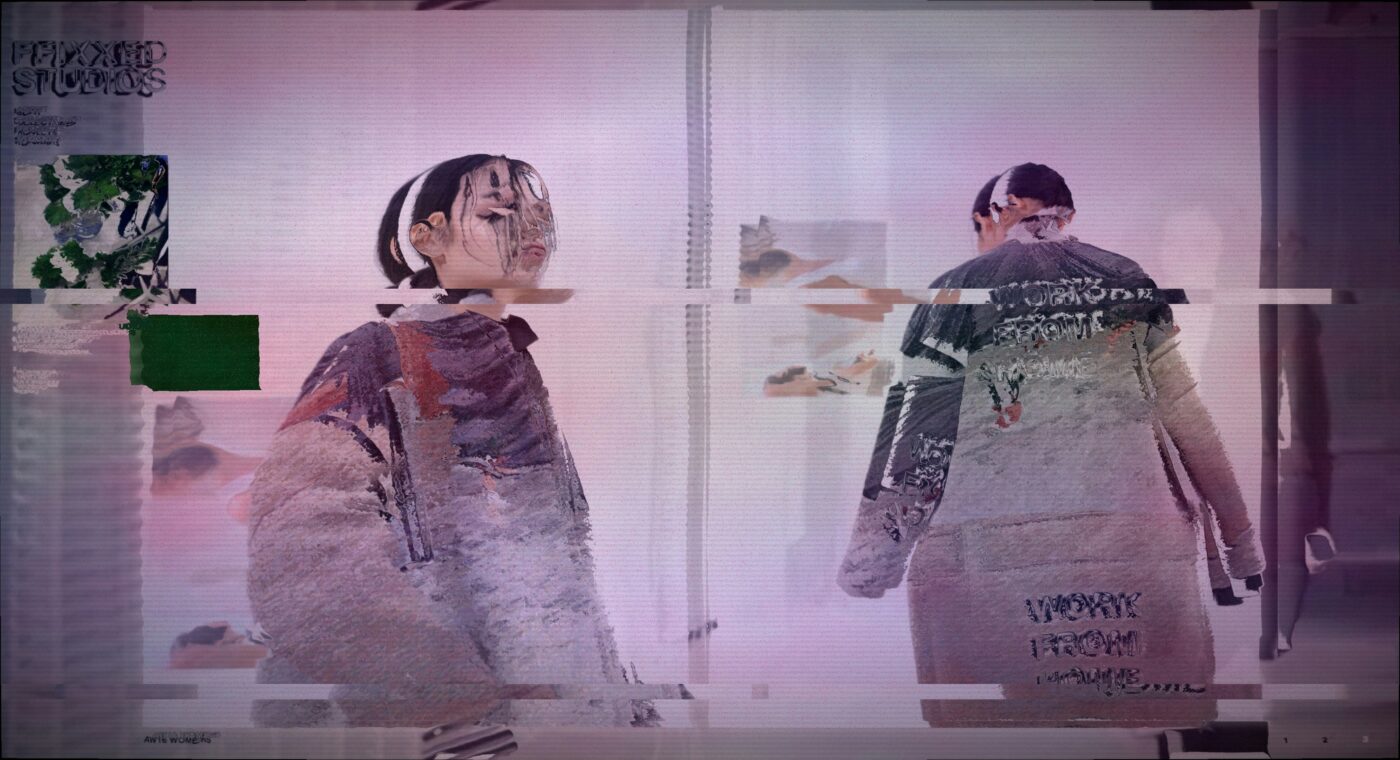
Photography is used primarily for blog posts and hero images. Images should feel creative, expressive and a little unexpected, using colour, texture, movement and unusual perspectives to spark curiosity. Choose images that connect with the subject or mood of the content, with room for text where needed. Avoid generic business imagery and overly polished stock photos.










Icons are small visual cues that help people find their way and understand an action. Use them where they make something clearer, not simply to decorate the page.
LKI uses a system set for everyday interface work and a personality set for expressive moments. Other brands may need only the system set.
Phosphor, Light weight, always this suffix. Use these for utility, navigation, and inline interface moments.
 chat-centered-dots
 calendar-blank
 camera
 cloud-arrow-down
 file-archive
 folder-dashed
 gear
gear globe-hemisphere-east
 heart
heart house
house image-broken
 lightbulb-filament
 lightning-a
 lock-key
 map-pin-area
 moon
moon music-notes
 paint-brush-broad
Animated Lordicon icons create motion and emphasis at section level.
Colour helps people recognise the brand and understand what they can do next. Use the roles below consistently: surfaces give content room, brand colours establish identity, and action colours show the next step. Choose approved text and background combinations so everything remains easy to read.
Use colour by semantic job rather than appearance.
These are the three core surfaces: page canvas, raised cards, and dark sections. The theme also uses one full-lime statement band and one pale-grey section band as deliberate, limited exceptions.
The colours that make the work recognizably LKI. They are named for what they look like because their exact job can change by context; the usage note on each swatch says what it does here. The number of Brand colours is not fixed: another client may need fewer or more, but every colour must have a real role rather than filling a quota.
Five brand-tinted neutral steps, darkest to lightest. The names and jobs are fixed across every client.
One interaction colour in three strengths. Pink marks links, arrows, hover and pressed states; the main filled button rests dark. It is never decorative, so people can trust that pink signals action.
Illustration and editorial colours used outside the everyday interface. They may appear in social posts and other editorial graphics with restraint, supported by the core brand palette rather than replacing it. A layout should not need them to feel finished.
Four conventional interface meanings belong in the system whether or not the brand uses similar hues. They are functional colours, not Brand colours. Always pair them with an icon and written label so meaning never depends on colour alone. Error, Success, and Warning pass AA for normal text on white; Info is for icons or large text on white, and passes AA for normal text on dark.
These foreground and background pairs are approved for normal text.
Typography gives a page its voice and helps people see what matters first. Use the heading and body styles below consistently, with clear levels and enough space for comfortable reading.
Title
H1
H2
H3
H4
H5
Eyebrow
EyebrowButton label
Large body text
Regular body text
Small body text
Annotations
Button label
Sentence case. Uppercase is a CSS treatment for eyebrow labels, not authored capitalization.
Sentence case — use this
Great design shouldn’t break in the build.
A few things built recently.
Book a discovery call
Title Case — not used
The Single-Operator Fix
Book A Discovery Call
Capitalising every major word is not part of this system, in any context.
ALL CAPS — a treatment, not a way of writing
Design and development
The caps above come from the Eyebrow treatment in CSS. Write the text itself in sentence case; labels, navigation and buttons may display in uppercase when the client’s Eyebrow role calls for it.
Layout is how content is arranged on a page. Use the spacing, corner and depth settings below to make related elements feel connected and give each section enough room to be read comfortably.
Spacing is the room inside and between elements. Use the ten-step core below to create a steady rhythm across pages, sections, cards and controls. The desktop and mobile roles show which values to use; avoid one-off gaps.
Default container: 1280px including gutters. Text measure: 65ch. Mobile values apply at 640px and below; multi-column content stacks at 900px and below. Explicit client requirements take priority.
Corner radius controls how rounded an element looks. Use consistent shapes for controls, cards and images. Buttons use the shape specified in their own examples; not every brand needs pill buttons.
Elevation describes how a surface appears to sit above the page, usually through a shadow or a small movement. Keep it quiet, use the documented brand treatment, and add a lift only when it helps explain an interaction. Flat is the default; use borders and shadows only to clarify grouping or interaction.
Buttons help people take the next step. Use the styles below to distinguish the main action from supporting actions and quieter links. Keep labels clear and use the matching light or dark version for the background.
On light surfaces, use a dark inverse primary pill with a medium-weight uppercase light label, a pink circular badge and a diagonal dark arrow. The secondary is a transparent pill with a 1px dark outline. Text links use medium-weight Small Body Text, muted dark text and a straight pink arrow. On dark surfaces, use a restrained glass primary and a muted-light text link with the same distinct arrows. Keep pink concentrated in the badge and interaction feedback; aim for one filled CTA per view.
Use these examples to combine the colours, type and layout rules into familiar cards, links and forms. Reuse the same patterns so people can understand what to read and what to do next.
The interface stays flat, readable, and predictable. These are the recurring pieces most likely to be recreated incorrectly; each specimen uses the same classes and tokens as the working site.
White, a light hairline, 14px corners, and only a quiet lift on hover.
Pink is reserved for interaction, so it remains recognizable wherever a link appears.
Read the next step →1240px maximum container · 80px desktop gutters · 48px tablet · 32px mobile